Choose your images
Upload two or more PNG, JPG, or still WebP images. Add more pictures if you need them.

Files stay on your device. No upload required.
CREATE AN ANIMATED GIF
Make an animated GIF from two or more pictures. Choose the order, set how long each image appears, preview the animation, and download it for free.
Choose at least two PNG, JPG, or still WebP pictures.
A single photo won't move on its own. Add two or more pictures showing different moments to make an animation.
Your pictures stay on your device while you make a GIF. No upload or sign-up is needed.
HOW IT WORKS
Upload two or more PNG, JPG, or still WebP images. Add more pictures if you need them.
Drag pictures to change their order. Pick a display time for all pictures or customize individual frames.
Choose the GIF size, how images fit and whether it should loop. Watch the preview, create your GIF, then download it.
SUPPORTED FILES
Choose two or more pictures that do not already move. You can mix PNG, JPG, and still WebP files, then download them together as one animated GIF.
| Image type | Best for | What to know |
|---|---|---|
| PNG | Drawings, screenshots, transparent artwork | Transparency can be kept, but soft transparent edges may change. |
| JPG / JPEG | Photos, products, travel pictures | JPG has no transparency and can be mixed with PNG frames. |
| Still WebP | Small web pictures and illustrations | Animated WebP isn't a still picture. Use the WebP to GIF tool instead. |
Have a clip instead of pictures? Use Video to GIF. Have one image containing a grid of animation frames? Use Sprite Sheet to GIF.
CONTROL YOUR ANIMATION
Start with 800 ms for each photo. Six images at 800 ms last about 4.8 seconds in total. That gives viewers enough time to recognize each scene before the next picture appears.
For a drawing or stop-motion sequence, try 150 ms per picture. Six pictures will play in about 0.9 seconds. Increase the time if the action is too fast to follow.
Keep an important picture on screen longer, or shorten a quick transition. Use the time field below each picture to make those changes, then play the preview.
Each picture has its own display time. A shorter time makes the animation move faster, while a longer time gives people more time to see the image. For example, 1,000 ms means one second. Very fast animations may play slightly differently in some apps.
MAKE PICTURES FIT
Not all your pictures need to be the same size or shape. Choose the canvas proportions and decide whether to show the whole picture, crop the edges, or stretch it. Use a white or custom background when you want the extra space around smaller or narrow photos to blend in.
Keeps the entire photo visible. Different aspect ratios may leave borders on two sides, depending on the canvas shape.
Fills the canvas without stretching, but cuts off some edges. Useful for evenly framed photo slideshows.
Uses every pixel of the canvas, but can make circles or people look wider or taller. Choose it only if distortion is acceptable.
WAYS TO USE YOUR GIF
Arrange four or more travel, product, or project photos. Try 800–1,000 ms per frame so each image is visible long enough.
Photograph the same object as it moves slightly between shots. Put the pictures in order and try 100–150 ms per frame.
Alternate two pictures of a room, design, or result. Try 900 ms for each image with Loop Forever turned on.
Not sure where to start? Choose Photo Slideshow for photos or Frame Animation for a drawing sequence, then adjust the speed after watching your preview.
Upload pictures in PNG, JPG, or still WebP format and put them in the order you want. Each picture becomes a frame of your animated GIF. Use the arrows to move pictures on a phone, or drag them into place on a computer. You can add images at any time, change how long each frame appears, and check the animation before creating the final GIF. You don't need video-editing software or an account.
Choose photos from the same trip, event, or product and arrange them in the order you want people to see them. Similar framing and lighting make the changes less distracting. Start with Photo Slideshow at 800 ms per picture, then give detailed photos more time. Preview the sequence if you have both portrait and landscape pictures.
For a stop-motion GIF, keep your camera steady and change the subject a little between each shot. Upload the pictures in the order they were taken, then check the thumbnails before exporting. Start with Frame Animation at 150 ms per picture. If an action looks too abrupt, add an extra picture of the movement or lengthen a frame that should pause. This also works for hand-drawn and pixel-art sequences.
You can mix PNG, JPG, and still WebP pictures even when they have different sizes. JPG photos have solid backgrounds, while PNG and still WebP may include transparent areas. Choose Fit Whole Image to show every part of a picture, or Fill & Crop to fill the GIF from edge to edge. Check the downloaded GIF if your pictures have soft shadows or transparent edges.
Try a 480-pixel GIF at Balanced quality first. Higher Quality uses more colors and can improve detailed photos, while Smaller File may work well for simple illustrations. GIFs cannot show all the colors in a photo, so gradual changes in color may look less smooth. If text is hard to read, increase the width and compare the result before downloading.
Your images are processed in your browser and are not sent to GIFEdit to create the GIF. Each picture can be up to 10 MB. The tool supports up to 40 images on desktop or 20 on mobile, subject to additional file-size and image-size limits. Large pictures can use a lot of memory on a phone or older computer, so try fewer pictures or a smaller output width if exporting does not finish.
SMALLER ANIMATED GIFS
If your animated GIF is too large to share, start with fewer pictures or a smaller GIF width. Even a short animation made from detailed photos can take up more space than you expect. Try these changes in order and check the finished file size after each export.
| Try this | What to change | Keep in mind |
|---|---|---|
| 1. Use fewer pictures | Remove extra pictures from Your Pictures. | A shorter sequence may tell a simpler story, but it often needs less space. |
| 2. Reduce GIF width | Try 320 px instead of 480 px under GIF Settings. | Smaller frames can make fine text and details harder to read. |
| 3. Compare quality presets | Choose Smaller File instead of Balanced, then compare the result. | Fewer colors may make photos and gradients look less smooth. |
| 4. Compress the finished GIF | Download the GIF and open the GIF compressor. | Compression can save more space, but the improvement depends on the images. |
Does changing the frame time reduce GIF file size? Usually not by much on its own. If you keep the same pictures, making each frame last 150 ms instead of 800 ms changes how fast the GIF plays, not the number of images stored. For a smaller file, try fewer pictures, a narrower width, or a different quality setting first.
ARRANGE YOUR PICTURES
The order in Your Pictures is the order in which your GIF plays. After uploading a batch, check the numbered thumbnails rather than assuming the file names or photo dates were automatically sorted. Drag a picture to a new position on desktop, or use its left and right arrows on a phone.
Put the opening image first and your final photo last. Start with 800 ms per image, then lengthen the most important picture if viewers need more time to see it.
Arrange the steps of the movement in the order they happened. Try 150 ms per frame, then slow down any important action by increasing that picture's display time.
Place Before first and After second, then give both pictures enough time to compare. Turn on Loop Forever if you want the two images to alternate repeatedly.
To make a repeating sequence feel less abrupt, choose first and last pictures that work together visually. The Loop Forever option repeats your frames; it does not create extra transition images or blend one photo into the next. Watch the preview, then check the actual downloaded GIF before sharing it.
IF SOMETHING LOOKS WRONG
Most problems can be fixed by adjusting the pictures, their order, or the GIF settings. Find the symptom below and try the matching step.
| Problem | What to try |
|---|---|
| A picture will not upload | Choose a PNG, JPG, or still WebP file under 10 MB. This tool does not accept HEIC, AVIF, or existing GIF files as individual frames. |
| An animated WebP is rejected | Use WebP to GIF for a WebP that already moves. Image to GIF combines separate still pictures. |
| The Create GIF button is unavailable | Add at least two pictures, choose a valid width between 64 and 800 px, and check the message beneath the preview. A very tall output may also require a different canvas shape. |
| Parts of a photo are missing | Change How Pictures Fit from Fill & Crop to Fit Whole Image, or choose a GIF shape that better matches your photos. |
| A person or object looks stretched | Switch from Stretch to Fit Whole Image or Fill & Crop so the original proportions are preserved. |
| Transparent edges look jagged | Try a White or custom background, and compare the exported GIF. GIF cannot keep the soft, partly transparent edges of some PNG and WebP images. |
| The sequence moves too fast | Choose Photo Slideshow (800 ms) or increase the time for individual pictures. Very short delays may play differently in some apps. |
| Conversion stops or fails | Try 2–6 smaller images at 320 px. Large source pictures and many frames can use too much memory on some devices. |
If your new GIF is working but needs another edit, you can resize its dimensions, add captions, or adjust its playback speed. You can edit the finished GIF without starting over with the original pictures.
SEE A REAL RESULT
Each card shows separate source images and the GIF they create. Load the result only when you want to watch it, or open the same frames in the editor above.
Four product photos become a simple rotating product GIF.
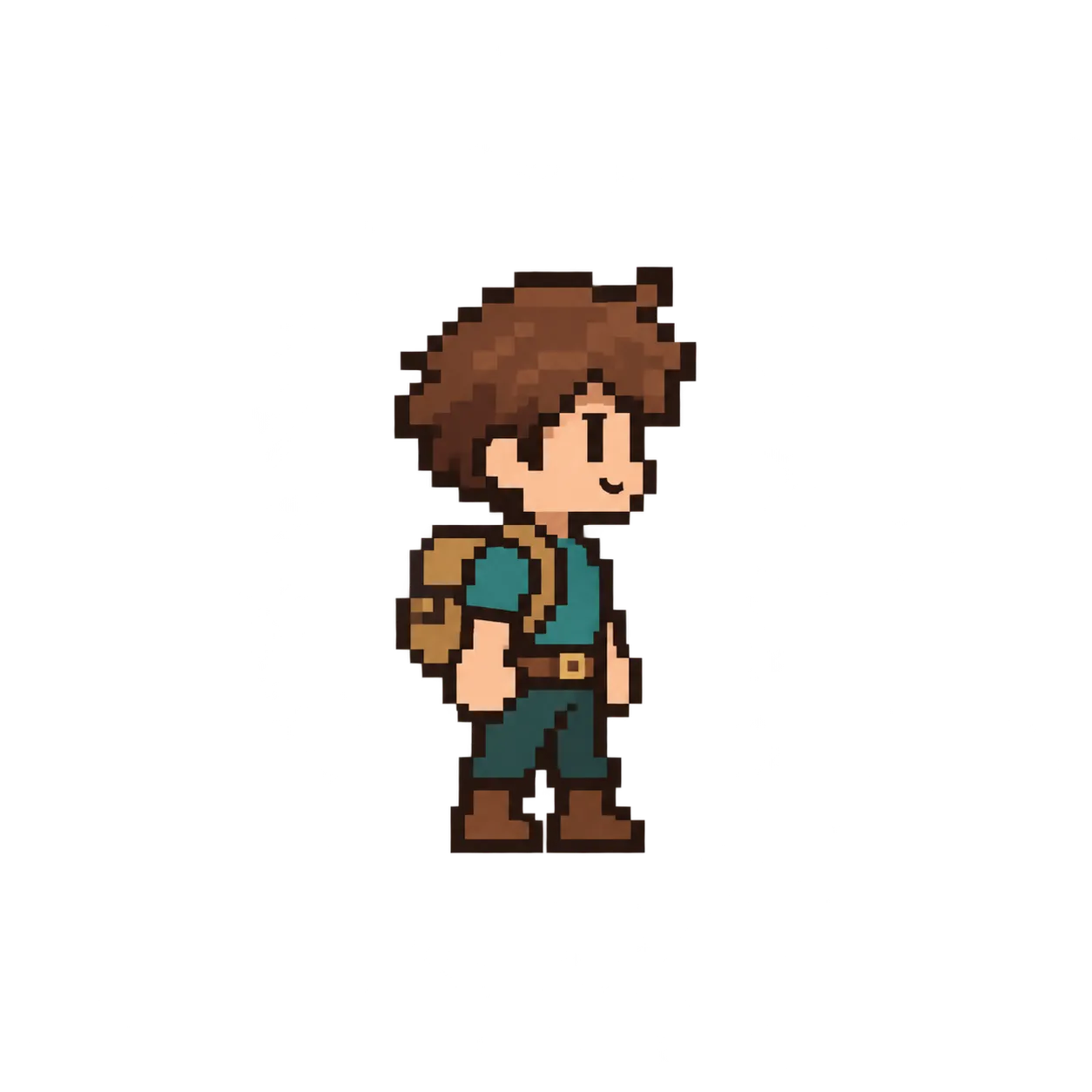
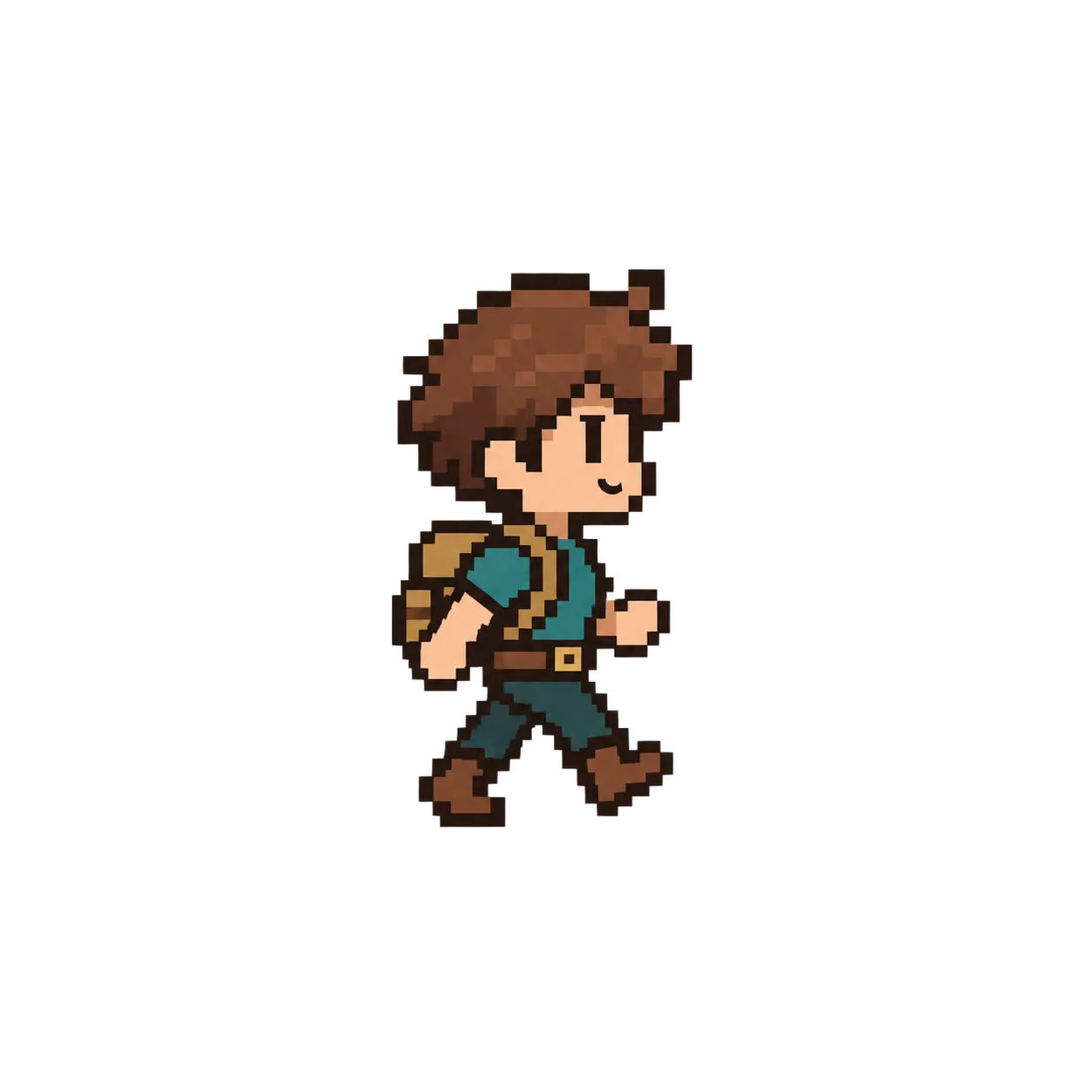
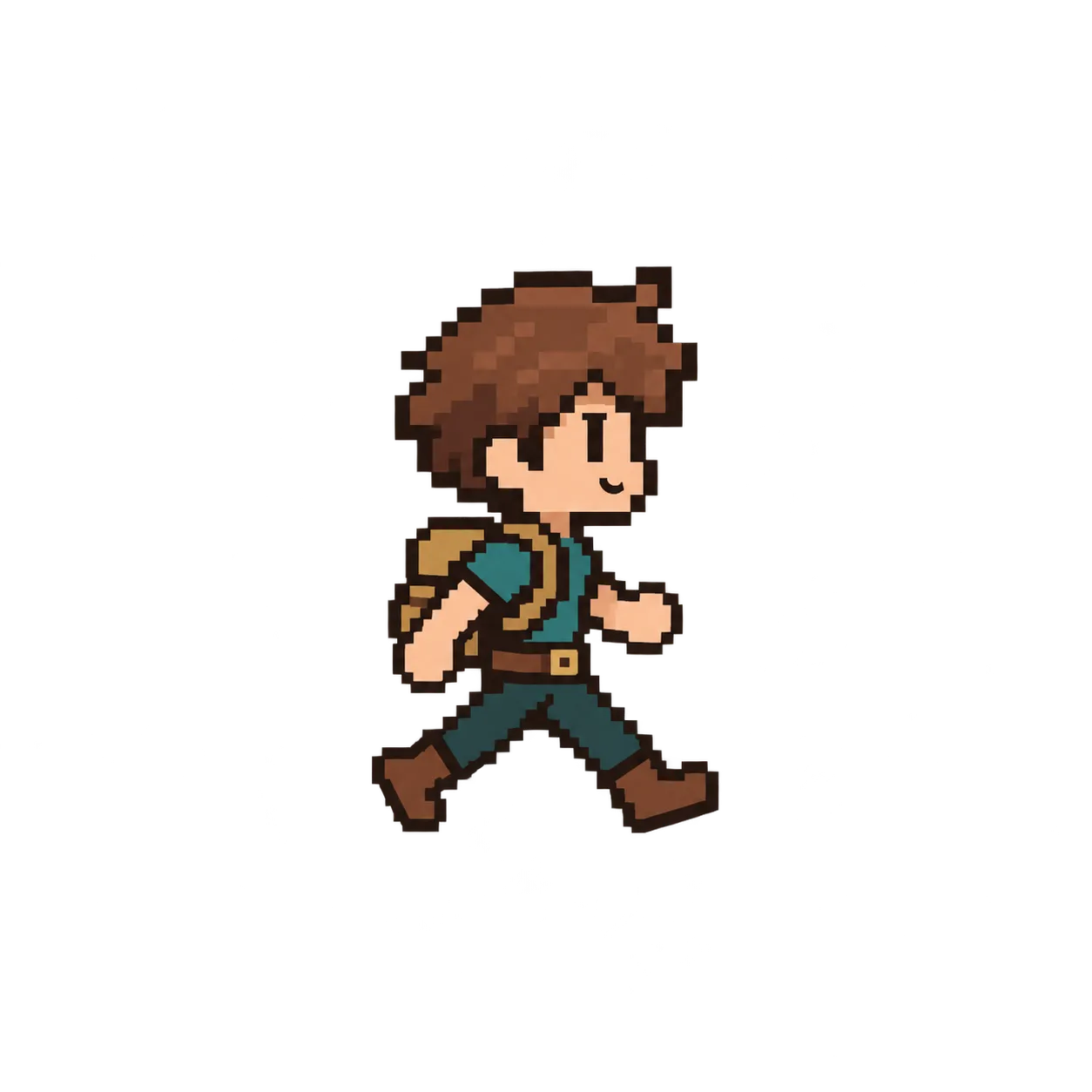
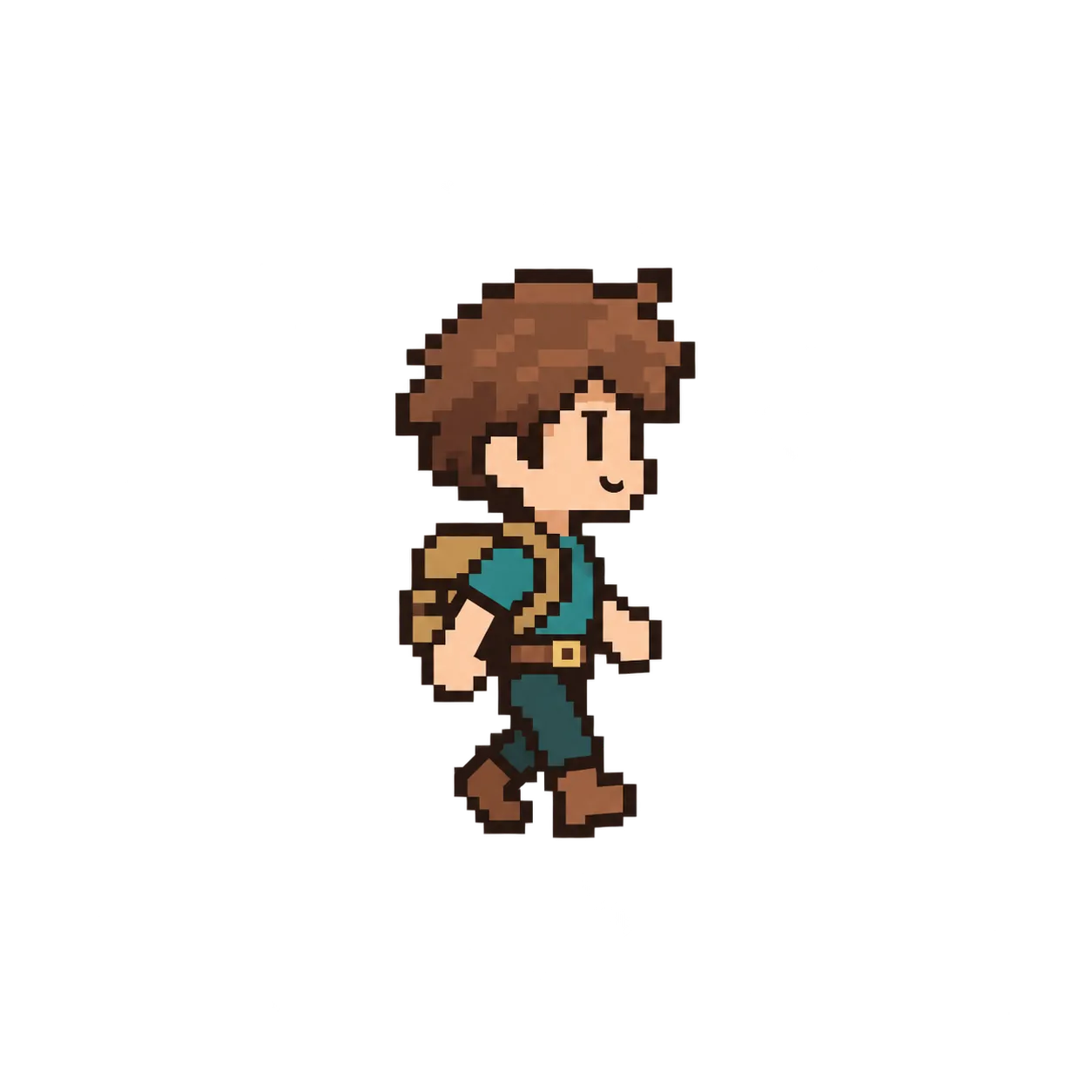
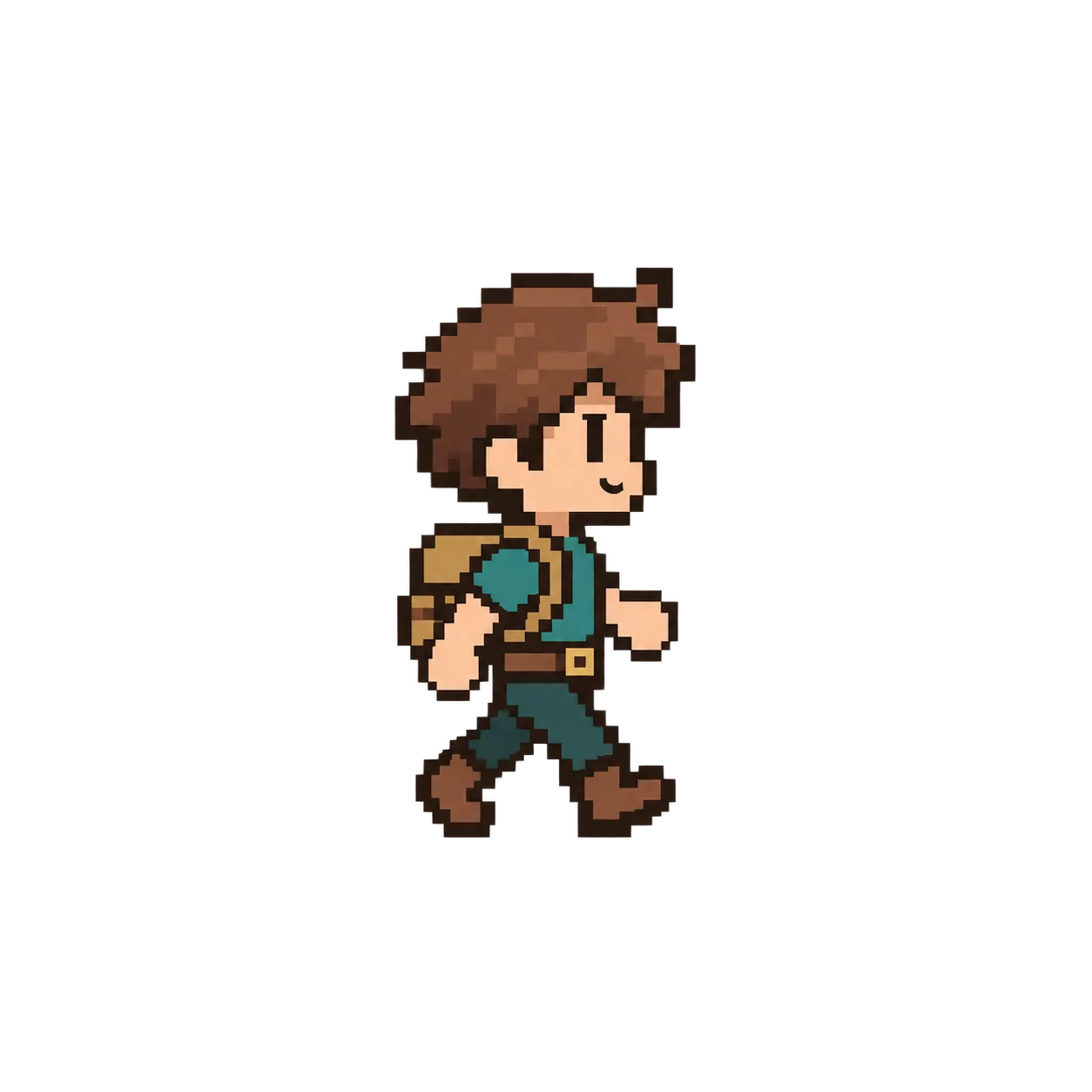
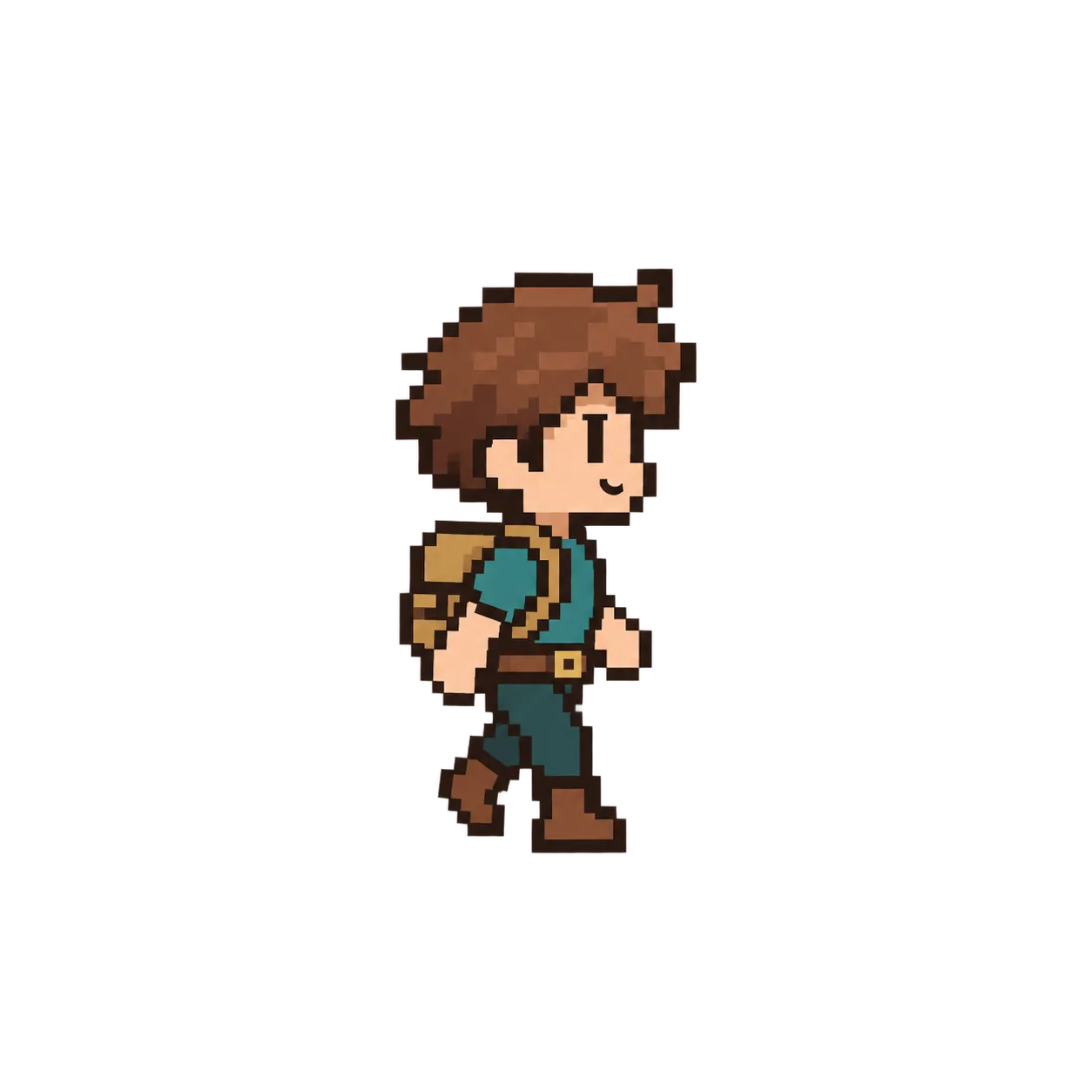
Six transparent pixel-art frames make a quick looping walk cycle.
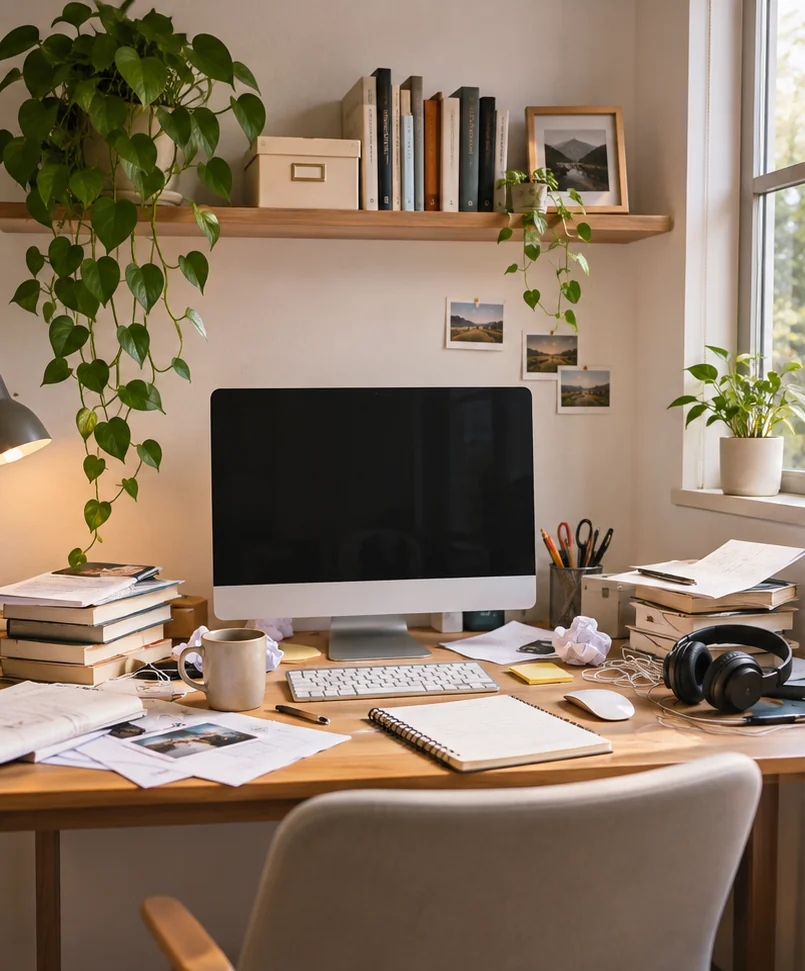
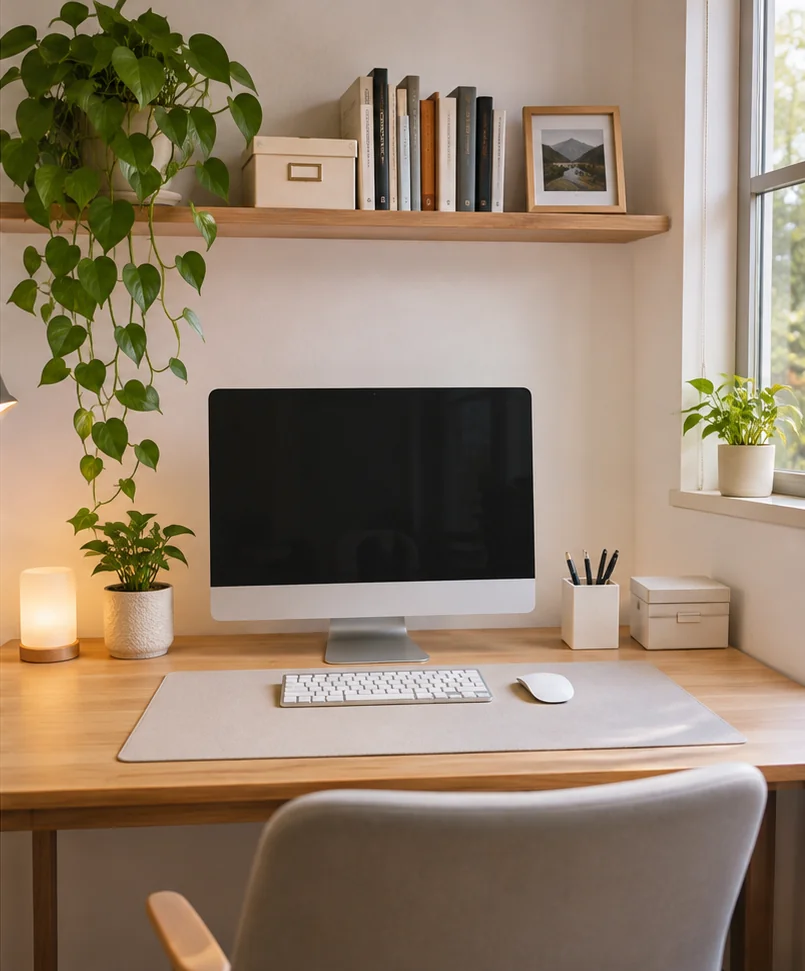
Two room photos alternate to make a clear before-and-after GIF.
WHICH TOOL DO I NEED?
| Your starting file | Choose this tool |
|---|---|
| Separate PNG, JPG or still WebP images | Use this Image to GIF Maker to arrange pictures into animation frames. |
| One sprite sheet with a grid of frames | Use Sprite Sheet to GIF to extract the grid cells. |
| An MP4, WebM or compatible MOV video | Use Video to GIF to pick a video clip. |
| A still or moving WebP image | Use WebP to GIF to convert that file directly. |
| An existing animated GIF | Use Compress GIF, Trim GIF, or Crop GIF to edit it. |
Converting a single PNG file into another image format is different from combining multiple pictures into a moving GIF. This page focuses on animated GIFs made from two or more images.
GOOD TO KNOW
Upload at least two PNG, JPG, or still WebP images, arrange them in order, choose how long each picture appears, preview the animation, then press Create GIF and download your result.
Yes. Upload two or more PNG pictures and set their order and display times. The pictures become individual frames in one moving GIF.
Yes. JPG photos work, and you can mix JPG with PNG and still WebP pictures. Different image sizes can be fitted to one GIF canvas.
You can add 2 to 40 images on desktop or 2 to 20 images on mobile. Each picture can be up to 10 MB. For smoother editing, use smaller pictures when possible.
Yes. Drag the pictures to change their order on desktop, or use the left and right arrow buttons on mobile. The new order is used in the animated GIF.
Choose Photo Slideshow for 800 ms per picture or Frame Animation for 150 ms, then adjust the display time on individual pictures if needed. Times can range from 20 to 5,000 ms.
Yes. Choose Fit Whole Image to keep each photo fully visible, Fill & Crop to fill the canvas, or Stretch to fit it exactly. You can also choose a square, landscape, or portrait GIF.
Yes, transparent areas of supported PNG and still WebP images can be kept. GIF does not support smooth partial transparency, so some soft or shadowed edges may look different.
A single picture alone has no movement. Add at least one more image to make an animated GIF, or prepare multiple versions of the picture showing different steps.
No. GIFEdit creates the GIF in your browser using the pictures on your device. Your images are not uploaded to the site for conversion.
GIF files often take more space than a single photo. Try fewer frames, a smaller GIF width, or the Smaller File quality option. You can also use the GIF compressor after downloading.
Not necessarily. Frame time changes how long each picture is displayed, but the GIF still contains the same number of pictures. To reduce file size, first try fewer frames, a narrower GIF width, or Smaller File quality.
Choose PNG, JPG, or still WebP images no larger than 10 MB each. Animated WebP, HEIC, AVIF, and existing GIF files are not accepted as individual pictures. If needed, save the image as PNG or JPG before adding it.
Fill & Crop makes each picture fill the GIF but may cut off the edges. Choose Fit Whole Image to keep everything visible, or change the GIF shape to match your pictures.
Image to GIF combines separate photos or pictures into an animation. Sprite Sheet to GIF takes a single image containing a grid of frames and turns the grid cells into an animation.