Choose your video
Select an MP4, WebM, or compatible MOV file. The video stays on your device while you work.

Files stay on your device. No upload required.
CREATE A GIF FROM VIDEO
Turn a video clip into an animated GIF. Choose the moment, adjust the size and frame rate, and download for free—without uploading your video to a server.
Convert locally in your browser. Your video is not uploaded to GIFEdit for processing.
HOW IT WORKS
Select an MP4, WebM, or compatible MOV file. The video stays on your device while you work.
Set the start and end time. Preview the selected clip and adjust the width, frame rate and quality.
Make your GIF, watch the result and check its size. Download it, or try new settings if you want a different result.
SEE A REAL RESULT
Each card starts with a light cover image. Open the original video or the converted GIF when you want to compare them, or try the sample in the converter above. On phones, examples do not autoplay together.
A short looping reaction made from a 1280 × 720 MP4. Settings match the converter: 320 px wide, 12 FPS, and Balanced quality (128 colors).
320 px · 12 FPS · Balanced · loop forever
Sample file sizes: MP4 1.2 MB → GIF 1.0 MB
A 5-second screen recording of text editing in a software UI. Converted at 480 px, 15 FPS, and Balanced quality so on-screen text stays readable without a huge file.
480 px · 15 FPS · Balanced · loop forever
Sample file sizes: MP4 103.6 KB → GIF 77.0 KB
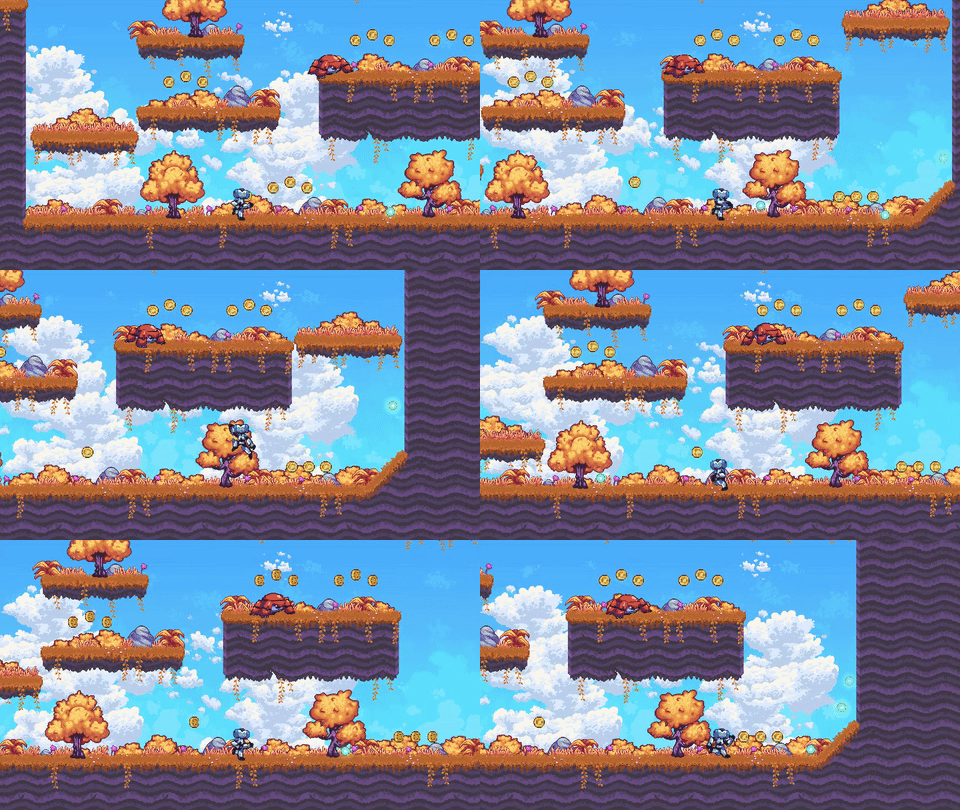
A 4-second platformer clip with running and jumps. Converted at 480 px, 20 FPS, and Higher Quality (256 colors)—the kind of settings that keep motion clearer and make a larger GIF.
480 px · 20 FPS · Higher Quality · loop forever
Sample file sizes: MP4 2.4 MB → GIF 6.5 MB
VIDEO FILES
Choose a file that your browser can preview. Two files with the same extension can use different video formats inside, so some MOV and MP4 videos may need to be saved again in a compatible format.
| Format | Common source | What to know |
|---|---|---|
| MP4 | Phone videos, screen captures, downloads | H.264 MP4 is a good choice for reliable GIF conversion. |
| WebM | Browser recordings and web clips | Try a short WebM clip. If it will not play, save it as an H.264 MP4 instead. |
| MOV | iPhone, Mac and QuickTime video | Some iPhone recordings, including those saved using HEVC, may not open. |
Some iPhone MOV files are saved using HEVC, which this tool may not be able to open. If your video will not preview or convert, save a copy as an H.264 MP4 in a video editor and try that file instead.
Have an animated WebP instead of a video? Use WebP to GIF. Have separate pictures? Those need an image-sequence GIF maker, not video conversion.
PICK A STARTING POINT
Try 3 seconds at 320 px and 10–12 FPS for a looping reaction or meme. Short loops are easier to share.
Try 5 seconds at 480 px and 12–15 FPS. Review the text in the final GIF and increase width if it becomes hard to read.
Try 4 seconds at 480–640 px and 15–20 FPS on desktop. Expect larger files when the scene has lots of movement.
Start with these settings, preview your GIF, then adjust what matters most. Your final file size depends on the original video and the settings you choose.
GIF SETTINGS EXPLAINED
The shortest useful clip is often the easiest to share. Clip length determines how long your GIF plays, FPS controls how many pictures are sampled per second, and output width changes the size of each picture. Quality changes how many colors your GIF can show. It will not make a blurry original video sharper.
| Setting | What changes | Good starting point |
|---|---|---|
| Clip length | More seconds mean more frames and often a larger GIF. | Keep just the important 2–5 seconds. |
| Frame rate | Higher FPS samples motion more often and can produce a larger file. | 12 FPS first; try 15–20 FPS for fast motion on desktop. |
| Output width | Wider frames can keep more detail but use more space. | 480 px generally, or 320 px for a small reaction GIF. |
| Color quality | Smaller File uses 64 colors, Balanced 128, Higher Quality 256. | Start with Balanced; compare Higher Quality for gradients. |
For example, four seconds at 12 FPS produces roughly 48 sampled frames, while four seconds at 20 FPS produces roughly 80. The exact count can vary with the original video. This does not tell you how large the GIF will be.
Want a smaller result? First trim away unused seconds, then lower width or FPS, and then try the Smaller File option. If the GIF still exceeds a sharing limit, compress the finished GIFafter downloading. You cannot guarantee a particular output size from FPS alone.
MAKE THE LOOP FEEL NATURAL
Loop Forever repeats the selected frames, but it does not make the last frame match the first. Look for a repeated gesture or movement that returns near its starting position. Avoid placing the cut in the middle of a sudden camera move or scene change. A two- or three-second loop often works better than a clip with several different actions.
Preview your selected section, export the GIF, then watch what happens when the animation jumps from its last frame back to its first. If the join is visible, move the start or end time and create it again. Turning off Loop Forever makes a GIF that plays once, although some apps may repeat it anyway. You can also trim frames from an exported GIFif you need a tighter loop.
FIX COMMON PROBLEMS
A video may fail because its format is not supported, the file is too large, or your device cannot finish the conversion. Find the problem below and try the suggested fix.
| Problem | What to try | Why it can help |
|---|---|---|
| Video will not preview | Export an H.264 MP4 or try a compatible WebM. | Some MP4 and MOV videos use a format your browser cannot play. |
| Conversion fails or stalls | Select 2–5 seconds, 320 px, and 10 FPS. Try a smaller input. | Making a smaller GIF is easier for a phone or older computer to handle. |
| GIF looks choppy | Try 15 FPS, or 20 FPS on desktop if the source is smooth. | More frames can make movement look smoother, but cannot fix a choppy original video. |
| GIF is too large | Shorten the clip, lower width or FPS, or select Smaller File. | Shorter and smaller GIFs usually take up less space. |
| Colors look rough | Compare Higher Quality against Balanced. | GIF supports at most 256 colors, so some gradients may still show bands. |
| Loop has an awkward jump | Choose start/end frames with similar motion and re-export. | The first and last images still need to look natural when repeated. |
Once your conversion succeeds, you can resize the GIF, add a caption, or change its playback speedwithout converting the original video again.
Need a GIF from a funny moment, a quick screen recording or a game clip? Choose a video, pick the few seconds you want and create a looping GIF. You can make a reaction GIF for a message, show a short interaction in a guide or share an animated preview without installing an editor. Keep the clip focused on one clear action, and choose whether the GIF should loop or play just once.
A video can contain far more colors than an animated GIF. GIF uses a palette of up to 256 colors, so sunsets, shadows, soft lighting and gradients may show visible bands or a speckled pattern after conversion. The Quality setting controls the number of colors: Higher Quality uses up to 256, Balanced uses 128, and Smaller File uses 64. More colors may help detailed scenes, but blurry parts of the original video will still look blurry. Compare your finished GIF with the original before downloading.
MP4 is a good starting point, especially with H.264 video. WebM can work well for browser recordings. Some iPhone MOV videos use HEVC compression, which may not play or convert here. If your video will not open, try saving a copy as an H.264 MP4 and upload that version instead. Not every MP4 or MOV video is compatible.
MP4 and WebM are designed to keep moving pictures small, while GIF files often need more space for the same clip. To make a smaller GIF, select fewer seconds, reduce the width, or choose a lower FPS. You can also download your result and use the GIF compressor if it is still too large.
Your video stays on your device while you make the GIF. You do not need to upload it to GIFEdit or create an account. You can choose a file up to 100 MB on desktop or 40 MB on mobile, then convert up to 15 seconds or 10 seconds respectively. Large videos may still be too demanding for some devices, so try a smaller file if the conversion does not finish.
Use GIF for a short moving illustration that loops on pages or in chat apps that accept GIFs. GIFs have no audio and use a limited color palette. Keep MP4 when you want sound, longer playback or a smaller file for the same video content. Both have advantages; turning a video into a GIF is about sharing an animation in a different format, not improving the original quality.
GOOD TO KNOW
Choose a video, select the part you want, set GIF width and frame rate, then press Create GIF. Preview the result before downloading. The process runs in your browser.
Yes. GIFEdit can convert a supported short video to a GIF for free, without adding a watermark or requiring an account.
Yes, compatible MP4 videos are supported. H.264 MP4 is a reliable format to try. You can trim the clip and adjust the resulting GIF size and frame rate.
Compatible MOV and WebM files are supported, but some codecs cannot be decoded by the browser-based converter. If your MOV file fails, try exporting it as an H.264 MP4.
Start with Balanced quality at 480 px and 12 FPS. For more detailed motion, try Higher Quality or 15–20 FPS on desktop. Higher settings can increase the file size.
GIF usually compresses motion less efficiently than MP4 or WebM. Choose a shorter clip, smaller output width or lower FPS; you can also use the GIF compressor after conversion.
Yes. The GIF format does not contain an audio track. The output GIF is silent, even when the original video has sound.
No. Your video stays on your device while the GIF is being made. GIFEdit does not upload it for conversion. Very large videos can slow down your device, so file sizes and clip lengths are limited.
The video format may not be supported, or the clip may be too large for your device. Try saving it as an H.264 MP4, choose a shorter clip at a smaller width, or try a different browser.
Start with 12 FPS for most short clips. If the movement looks choppy, try 15 FPS or up to 20 FPS on desktop. Higher FPS can make a larger GIF and cannot restore missing frames from the original video.
You can select a short section from a longer supported video as long as the file is within the upload limit. Each export is limited to 15 seconds on desktop or 10 seconds on mobile. Larger source videos may still need more browser memory.
Choose a clip that begins and ends with similar motion, then turn on Loop Forever. Watch the GIF before downloading. If the repeat looks jumpy, adjust the start or end time and try again.